Team collaboration — inviting members and managing permissions
For: all
Tier: starter+
Time: ~6 min
Why you'd do this
Compliance is rarely a one-person job: an engineer scans, a compliance lead reviews, a counsel attests. ComplianceLint's invite flow lets the OWNER bring members onto specific repos without sharing API keys. Members inherit the OWNER's tier for that repo (so a Free member of a Pro owner's repo gets Pro features there), which keeps billing simple but means downgrade events have a blast radius across teams.
Before you start
- Starter+ tier (free tier has no Team page)
- The teammate's email address (a sign-in link is sent automatically)
- Awareness that the OWNER's tier covers the whole repo — invited members do not need their own paid plan to access Pro features on your repos
Step 1
Open the Team page from your account menu. The page header shows your current team-member count ("N members (unlimited)") with an Invite Member button top-right. Below the header is the member list; if no one has been invited yet, it shows the empty-state message "No team members yet. Invite someone to get started." When you have invitations from other owners, a second section Invitations to me lists those repos so you can accept or dismiss them.
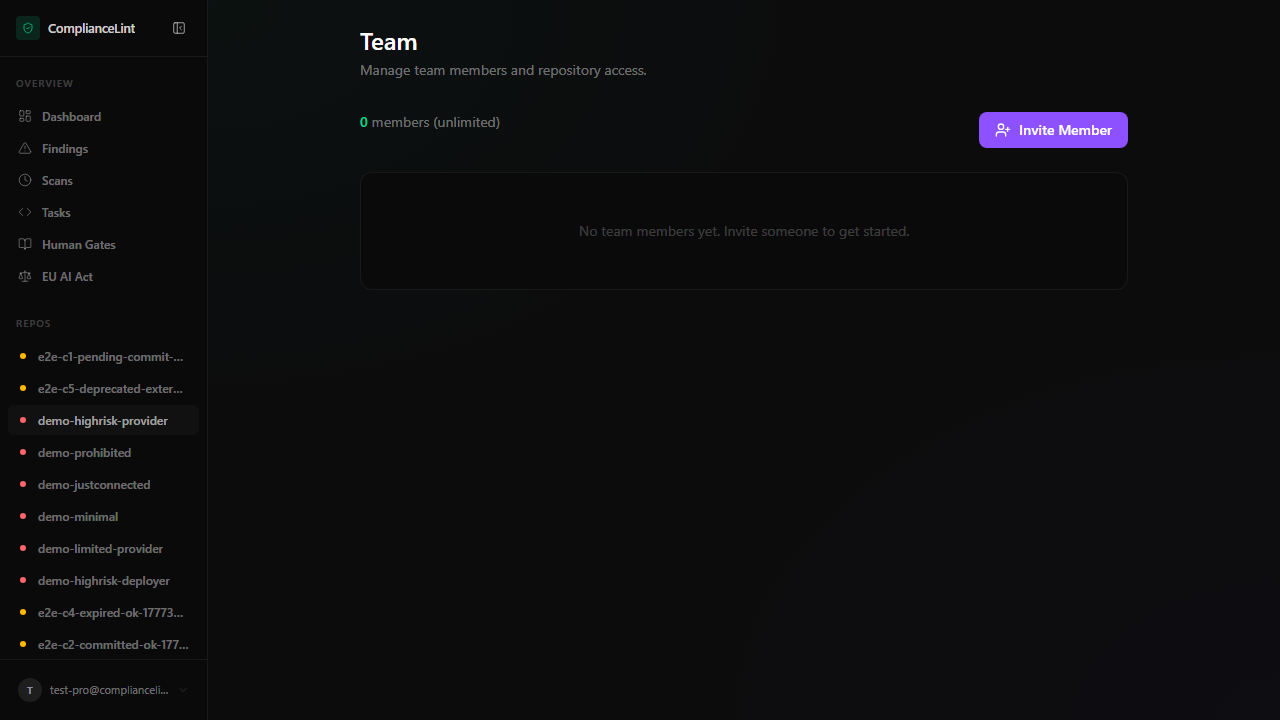
What you'll see: Team page with header "Manage team members and repository access", member-count + Invite Member button, and an empty panel "No team members yet" for accounts that haven't sent any invites yet.
Step 2
Click Invite on the repo you want to share. Enter the teammate's email and pick role:
- Member — can view, scan, comment, upload evidence, attest human-gate questionnaires. Cannot delete the repo, change tier, or invite others
- Owner — full control. There can be multiple owners per repo; ownership is shared, not exclusive
The invitee gets a sign-in email with a tokenised link. Clicking the link signs them into ComplianceLint (creating the account if new) AND auto-attaches the repo. The token is one-shot — re-use fails with invite_already_redeemed.
Step 3
When the invitee accepts, their dashboard sidebar gains the new repo under REPOS. They can switch to it the same way as any owned repo. The repo's Settings → Danger Zone is hidden for members — they can't delete or unlink the repo, only the OWNER can. Invited-member views of repo settings render a one-line banner explaining the read-only state for those fields.
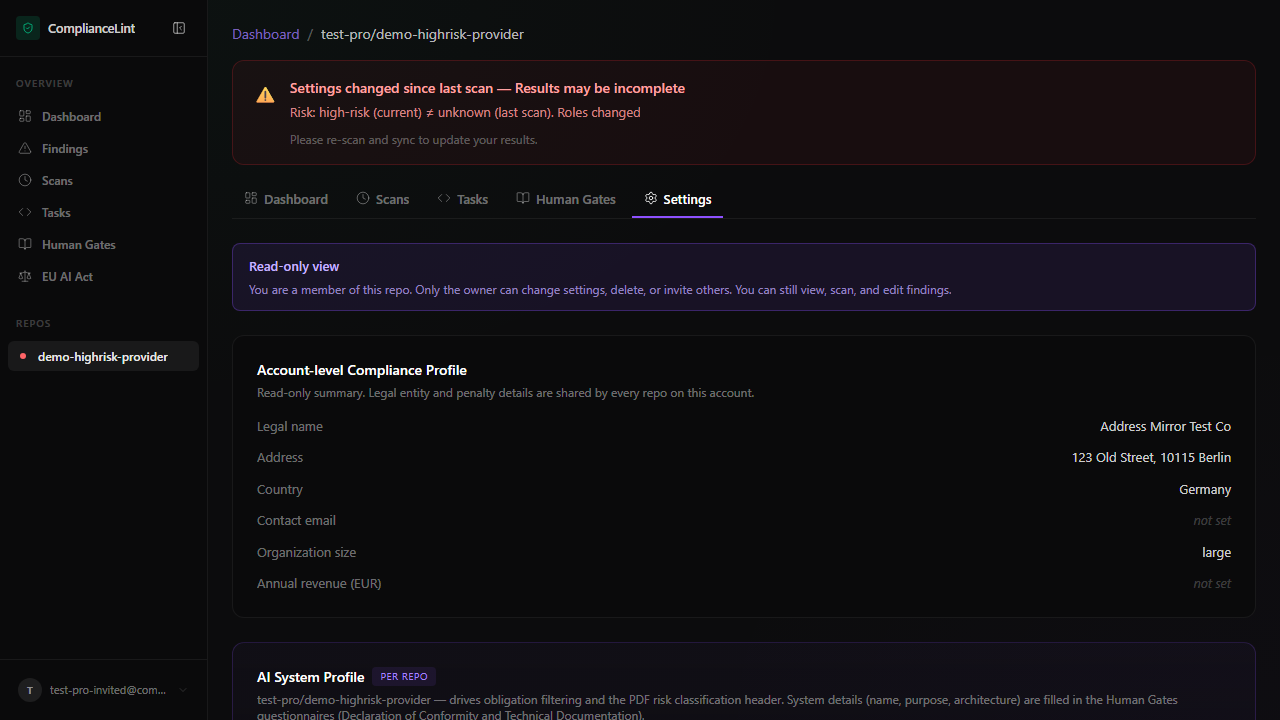
What you'll see: Repo settings as seen by an invited Pro member. Blue banner at the top reads "Read-only view — You are a member of this repo. Only the owner can change settings, delete, or invite others. You can still view, scan, and edit findings." The Account-level Compliance Profile shows as read-only summary; the Danger Zone card is omitted entirely.
Step 4
From the Team page, an OWNER can click Revoke next to a member to remove their access. The repo immediately disappears from the member's sidebar. Their prior contributions (uploaded evidence, attestations) remain in the audit trail with their name preserved.
From the Invitations to me section, a member can dismiss a pending invitation with the X button on the row (effectively declining or leaving). Their work stays in the audit trail; only their access is removed.
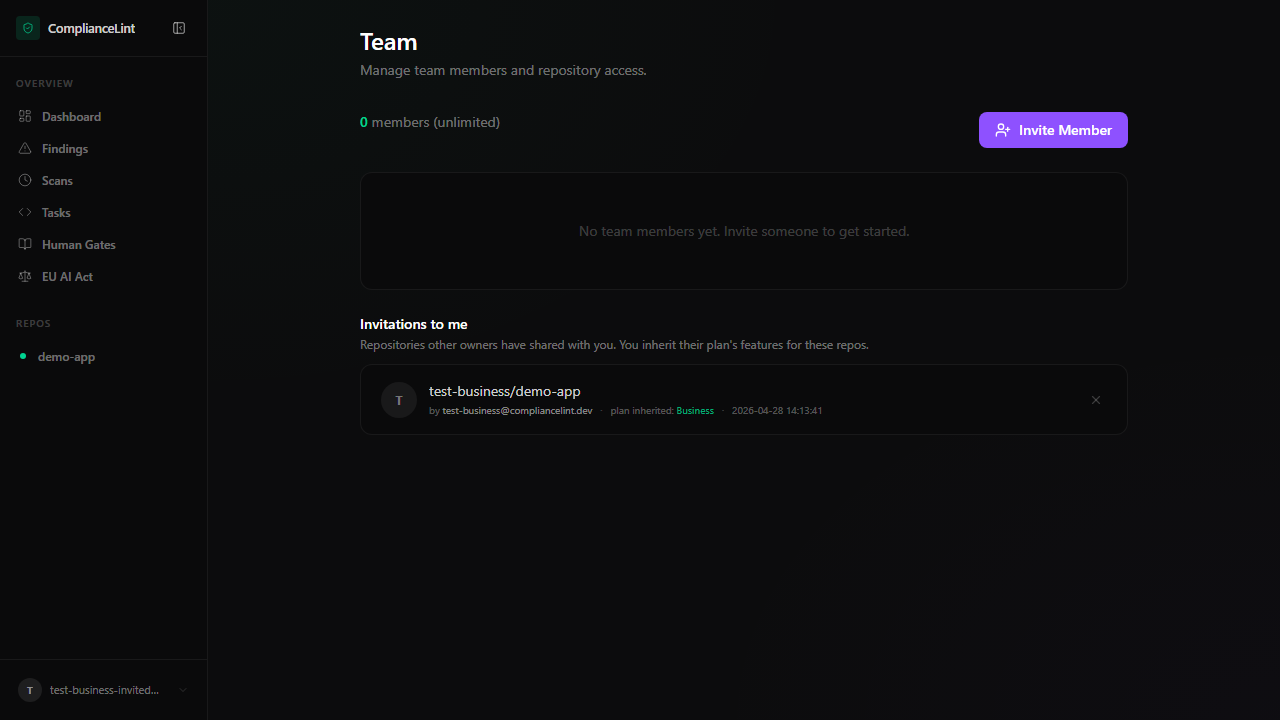
What you'll see: Business-tier invited member's Team view: own members section empty ("0 members"), plus an Invitations to me section listing the invitation row — owner email, plan inherited from owner (Business), invite timestamp, and an X dismiss button.
Step 5
Tier downgrades have a team-wide blast radius. If a Pro owner downgrades to Free (maxRepos = 1), every repo BEYOND that limit becomes locked: read-only for everyone — owner and members alike. The dashboard shows a red "Locked repo" banner naming each affected repo.
Locked repos can be:
- Unlocked by re-upgrading the owner's account
- Released by the owner unlinking the repo (Settings → Danger Zone) — releases the lock on remaining repos
- Transferred by inviting a Pro+ owner and removing the downgraded owner (planned, not yet shipped)
Downgrades never delete data — every scan, evidence file, and attestation is preserved. The lock just gates new writes.
What can go wrong
- Invite email never arrives — Check spam — the sender is
noreply@compliancelint.dev. If still missing, the OWNER can re-send from the Team page (Resend button on the pending-invite row). Also verify your account's email allowlist — corporate filters sometimes block first-contact from unknown SaaS senders. - Member can't fill a Human Gate questionnaire even though they have access — Human Gates Fill is gated by the OWNER's tier, not the member's. If the owner is Free or Starter, no one on the repo can fill — the dropzone shows "upgrade required". Owner needs Pro+ for the fill action to unlock for the whole team.
- After a downgrade, my repos are locked but I want to keep working on the most important one — The lock applies in repo-creation order: oldest repos stay unlocked first. To pick which repo stays active under the new lower tier, unlink the others from Settings → Danger Zone. Released repos can be re-attached later if you re-upgrade — the scan history and evidence persist on the dashboard side.
Related
Last updated: 2026-08-11