Scans page — every sync, in order, across every repo
For: all
Tier: free+
Time: ~3 min
Why you'd do this
Compliance is iterative — most repos accrue dozens of scans over a release cycle. The scans page is the chronological audit trail: who ran what scanner version against which commit at what time, and what the result was. Useful for proving "we re-scanned after the fix" to a regulator and for spotting drift between consecutive scans.
Before you start
- At least one synced scan (otherwise the page shows an empty state linking back to the Quick Start)
Step 1
Open /dashboard/scans from the sidebar. Every scan across every repo you can access appears in reverse-chronological order. Each row shows:
- Repo name (clickable → repo overview)
- Scan timestamp (ISO + relative "3h ago")
- Scanner version + AI provider (Claude Code / Cursor / manual)
- Status pill (COMPLIANT / NON_COMPLIANT / PROHIBITED — color-coded)
- Counts: NC / UTD / Compliant / NA — clickable into the detail filtered to that status
- Submitted by (the email of the user who initiated the originating sync)
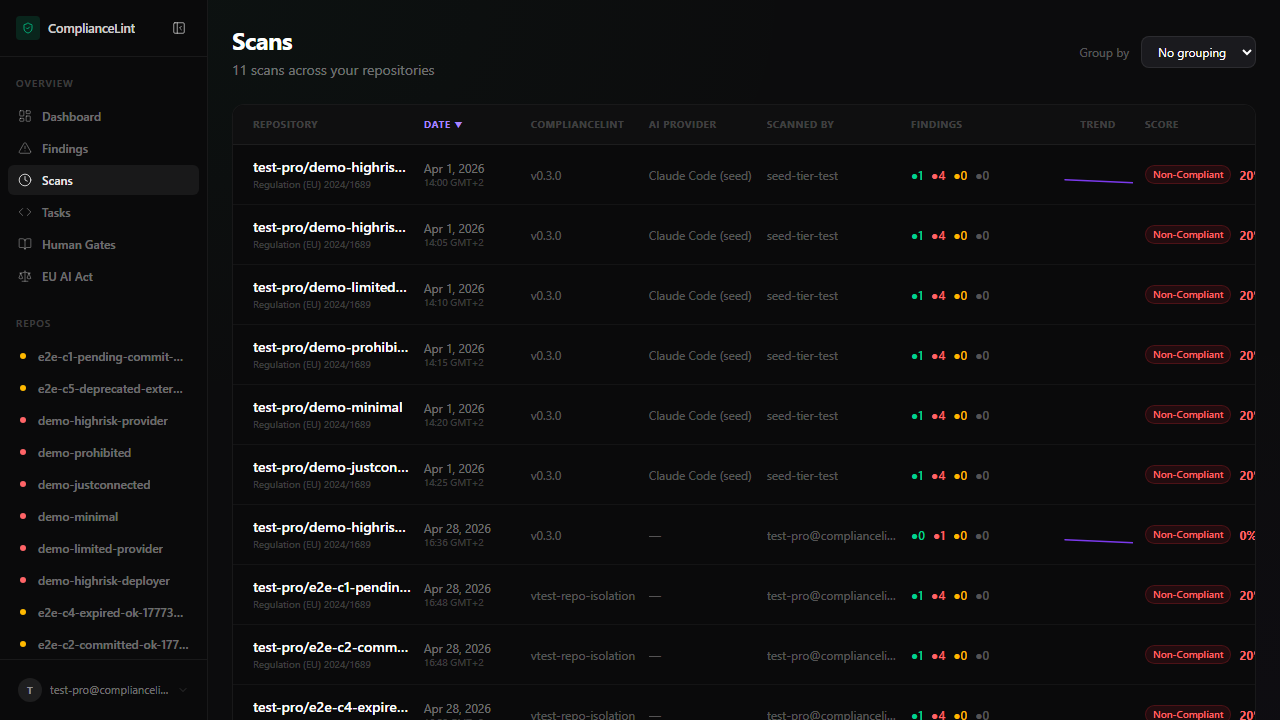
What you'll see: Table of scans, most recent at top. Free tier sees only their own repos' scans; invited members see the joint set (owned + member access).
Step 2
From a repo's overview, click the Scans tab to see only that repo's history. Same row format, no repo column (since they're all the same). Use this view when comparing successive scans on ONE repo to spot what changed (e.g. evidence upload moved a finding from NC → COMPLIANT between two timestamps).
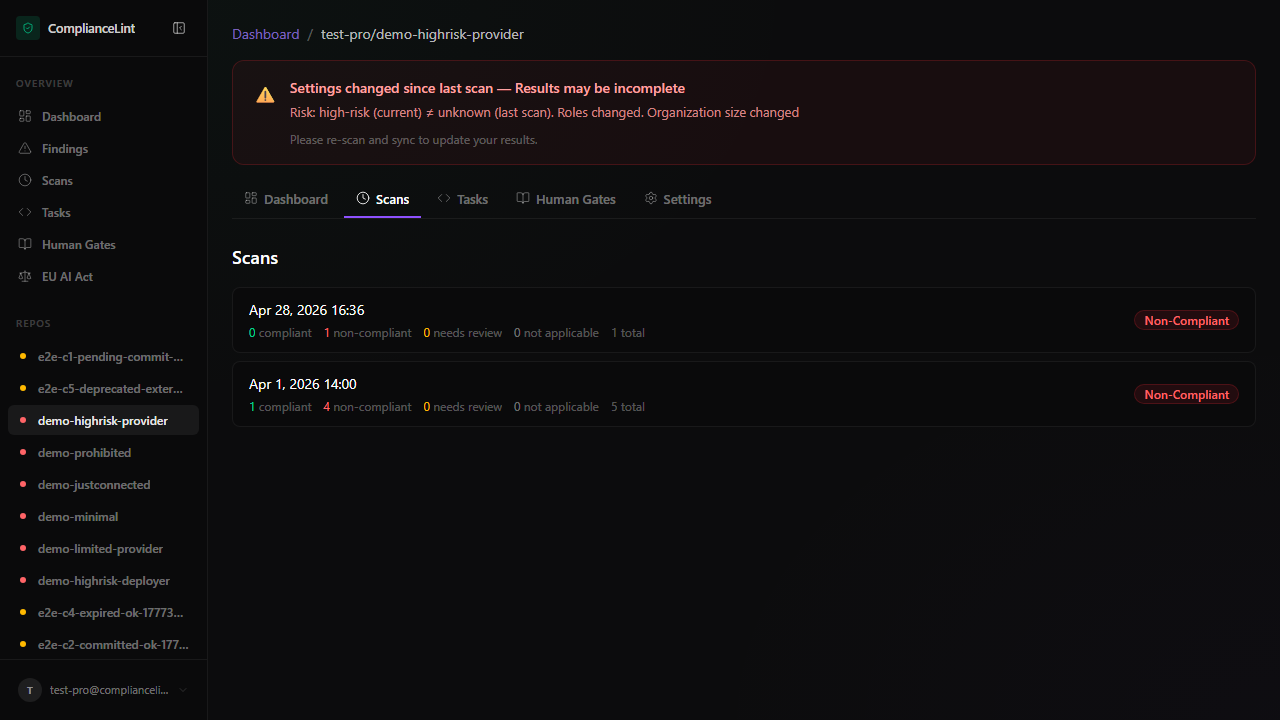
What you'll see: Per-repo scan list with the repo name visible only in the breadcrumb. The newest scan row is highlighted as the "current" state used for KPI calculations.
Step 3
Hover any row for two row-level actions:
- Open — navigate into the scan-detail page (per-finding evidence, AI reasoning, ability to attest / upload)
- Compare with… — opens a side-by-side diff against another scan on the same repo, highlighting which findings changed status between the two snapshots
Right-click for the underlying API URL (handy for dropping into a CI script that exits non-zero on any new NC finding — see CI/CD quality gate).
Step 4
Filter row above the table:
- Repo — multi-select (cross-repo view only)
- Status — pill filter; clicking COMPLIANT shows only clean scans
- Date range — quick presets (7d / 30d / 90d / custom)
- Submitted by — useful for team workflows where one engineer scans and another reviews
Filters compose with AND. The URL updates with each filter so you can bookmark or share a specific view (e.g. "all NC scans in the last 7d on the prod repo").
Step 5
Scan retention is binary by tier:
| Tier | Scan history kept | |---|---| | Free | 7 days | | Starter | Unlimited | | Pro | Unlimited | | Business | Unlimited |
Free older-than-7d scans are pruned by a daily cleanup job (not silently — the Compliance All-in-One Pack export, Business+, captures whatever's still in history at the moment of export, so a periodic export is a way to anchor an immutable snapshot regardless of tier-level pruning).
Free that needs longer than 7d retention: upgrade to Starter (€29/month) — Starter onwards keep all history. Free tier deliberately doesn't expose pruning as an in-page paywall — it just shows the latest 7 days; older scans are rendered as a dimmed "Upgrade to see prior" footer.
What can go wrong
- A scan I just synced doesn't appear in the list — First check the network —
cl_syncreportssynced: trueBEFORE the dashboard finishes ingesting. Wait 5-10 seconds and refresh. If still missing after a minute, check the sync response for warnings: a partial sync may have written the scan envelope but not the per-finding rows, in which case asking your AI to sync again (the operation is idempotent) finishes the job. - Cross-repo scans page shows ONLY some of my repos' scans, not all — By default the page filters to the last 30 days. Older scans from low-activity repos won't appear without expanding the date range. Click "Last 90d" or "All time" in the filter row. If a repo never appears regardless of date range, check that you still have access to it (a removed member loses scan visibility immediately).
- Compare diff shows "0 changes" between two scans I expected to differ — Compare uses
obligation_id+statusfor diff. If two scans have the same NC obligations even though counts changed, the delta might be in NA / Compliant where the diff filter is minimised. Toggle the "Include NA / Compliant deltas" checkbox in the compare view header.
Related
Last updated: 2026-08-11