Compliance Profile setup — fill once, auto-populate every PDF
For: all
Tier: free+
Time: ~4 min
Why you'd do this
EU AI Act Annex V (Declaration of Conformity) and Annex IV (Technical Documentation) require specific company-identity fields: legal name, registration number, country, business address, contact email. The Compliance Profile holds these once at the account level so every scan-time PDF auto-populates them — without it, exported documents use placeholder "Your Company" text that fails regulator submission.
Before you start
- Your company's official legal name (as it appears on the trade register), NOT the trade name
- Registration number (HRB / VAT / SIREN — whichever applies)
- Country of EU establishment, OR a country outside the EU PLUS the details of an EU Authorised Representative (Art. 22)
- An organisation-size category (micro / SME / large) — drives penalty calculations under Art. 99
Step 1
Click your avatar (bottom-left of sidebar) → Settings → Open Compliance Profile card. The form opens with any existing values pre-filled from your last save. Compliance Profile is account-level — every repo on this account shares this data, so you only fill it once.
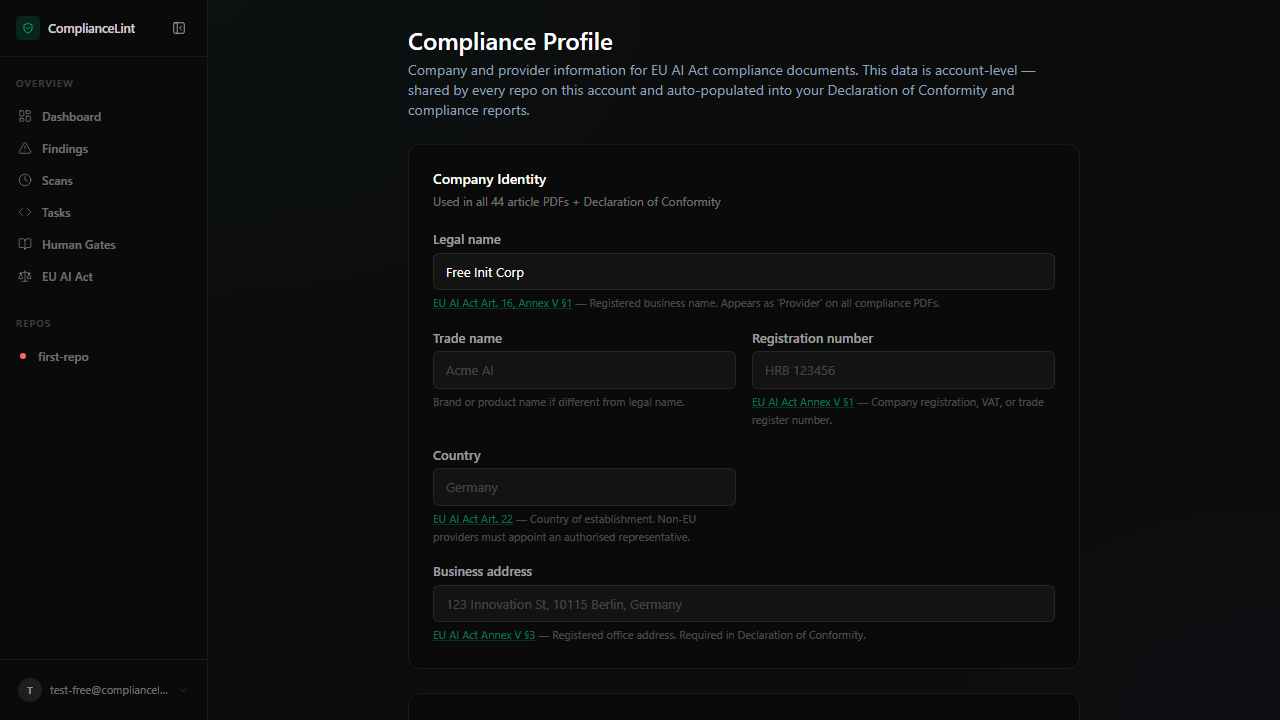
What you'll see: The Compliance Profile form: Company Identity card at top (legal name, trade name, registration number, country, business address), followed by Organisation Details and Authorised Representative cards if applicable.
Step 2
Legal name (required) — appears as the "Provider" line on every Declaration of Conformity. Use the exact name on your trade register entry, not a marketing brand.
Trade name (optional) — only if your customer-facing brand differs from the legal name (e.g. "Acme AI" sold by "Acme Holdings GmbH").
Registration number (required) — country-appropriate identifier: German HRB, French SIREN, Spanish NIF, etc. Appears in Annex V §1.
Country of establishment (required) — drives whether the system needs an EU Authorised Representative. If you select a non-EU country, a new card appears asking for the Authorised Rep's details (Art. 22).
Step 3
Business address (required) — registered office address, not the dev team's location. Annex V §3 calls this out specifically. If you have multiple sites, use the one on your trade-register filing.
Contact email (required) — used as the post-market monitoring contact (Art. 72) and on regulator submissions. Use a role-based mailbox (compliance@yourco.com) rather than an individual's address — it survives staff changes.
Step 4
Organisation size (required) — micro / SME / large.
| Tier | Headcount | Annual turnover | |---|---|---| | Micro | < 10 | ≤ €2 M | | SME | < 250 | ≤ €50 M | | Large | ≥ 250 | > €50 M |
This drives penalty calculations under Art. 99 (the maximum fine for non-compliance is the GREATER of a fixed amount or a % of annual worldwide turnover; SMEs receive proportionality considerations under Recital 148). The Penalty Banner on each repo's overview page reflects this estimate.
Annual revenue (optional but recommended) — gives a more precise penalty estimate. Stored encrypted at rest.
Step 5
Visible only if your Country of establishment is OUTSIDE the EU. Art. 22 requires non-EU providers of high-risk systems to designate a written-mandated EU representative.
Required fields when shown:
- Representative's legal name
- EU Member State of establishment
- Business address in that Member State
- Contact email + phone
- Date of mandate (start of representation agreement)
These flow into the Declaration of Conformity (Annex V §2) and the Technical Documentation cover sheet. Without them, exported PDFs fail validation when submitted to a national competent authority.
What can go wrong
- After saving, the dashboard banner "Complete your Compliance Profile" still shows — The banner clears when
legal_nameis non-empty. If you saved with the legal-name field empty (e.g. only filled trade name), the banner persists. Re-open the profile and ensure Legal name has a value, then save again. - Generated PDF shows "Your Company" instead of my legal name — PDFs are generated at scan time using the Compliance Profile snapshot at THAT moment. If you ran the scan BEFORE filling the profile, that scan's PDFs are baked with the placeholder. Ask your AI to re-scan and sync to regenerate with the current profile values. The old scan stays in history — only NEW scans pick up the updated profile.
- Country is non-EU but the Authorised Representative card never appears — The card is conditional on Country selection — if you set Country and saved BEFORE the card had time to render, the form may have submitted without the rep section. Refresh the page and the card should now appear; fill and save again.
Related
Last updated: 2026-08-11